
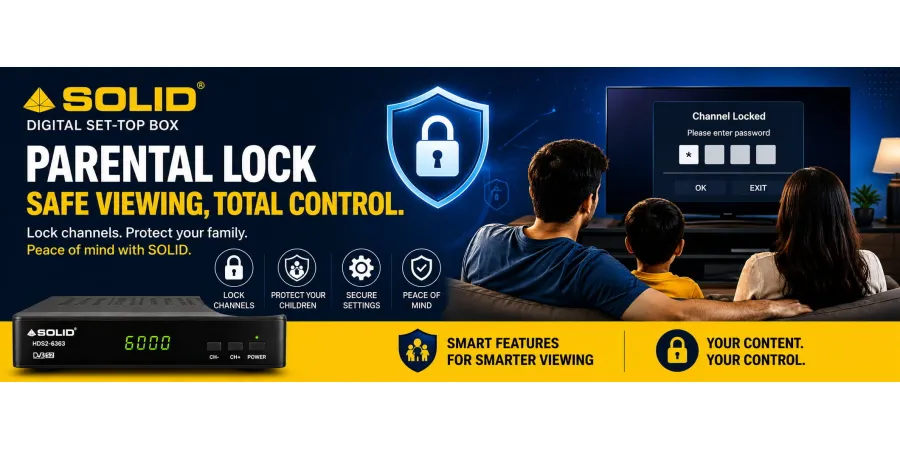
Keep Your Family Viewing Safe with SOLID Set-Top Boxes
In today’s digital world, managing what children watch on television has become more important than ever. Whether you want to restrict access to certain channels or protect settings from accidental changes, SOLID Set-Top Boxes come with a built-in Parental Lock feature to give you better control over your viewing experience.
If you’re wondering how the parental lock works on a SOLID set-top box, this guide explains everything in a simple way.
What Is a Parental Lock Feature?
A Parental Lock is a security feature that helps users control access to specific channels, menus, or content using a password/PIN. It is especially useful for families with children, ensuring they only watch suitable content.
With the parental lock feature in your SOLID Set-Top Box, you can:
Lock unwanted TV channels
Restrict adult or age-sensitive content
Prevent unauthorized access to settings
Secure channel scanning and installation menus
Does SOLID Set-Top Box Have a Parental Lock?
Yes! Most SOLID set-top boxes include a Parental Lock feature that allows users to secure channels and settings with a password.
This feature is designed to make TV viewing safer and give parents peace of mind by controlling access to specific content.
How Does the Parental Lock Work?
Setting up parental lock on a SOLID box is quick and simple. Follow these easy steps:
Step 1: Open the Menu
Using your remote control, press the MENU button on your SOLID set-top box.
Step 2: Go to System or Settings
Navigate to System Settings, Installation, or Parental Control (menu names may vary by model).
Step 3: Enter Password
You may be asked to enter a PIN/password.
Default Password (in many models): 0000 or 1234
(You can change this for better security.)
Step 4: Select Channel Lock
Choose the channel you want to restrict and enable the Lock option.
Step 5: Save Settings
Save your changes. Now, whenever someone tries to open a locked channel, the system will ask for a password.
Can I Change the Password?
Absolutely!
For better protection, it’s recommended to change the default PIN to a custom password.
You can usually do this by:
Menu → Settings → Parental Control → Change Password
Choose a PIN that is easy for you to remember but difficult for children to guess.
Why Use Parental Lock on Your SOLID Box?
Here are some key benefits:
1. Child Safety
Prevent children from accessing inappropriate channels or content.
2. Better Content Control
Choose exactly what family members can watch.
3. Prevent Accidental Changes
Stop others from changing satellite settings, rescanning channels, or modifying configurations.
4. Peace of Mind
Enjoy television knowing your content preferences are secure.
Important Note
The menu layout and parental lock options may vary depending on your SOLID set-top box model, but the feature is available in most supported models.
If you need assistance setting up parental lock on your specific SOLID receiver, feel free to contact our support team.
Final Thoughts
The Parental Lock feature in SOLID Set-Top Boxes is a simple but powerful tool for families who want better control over TV content. With just a few steps, you can lock channels, protect settings, and create a safer viewing experience for everyone at home.
Stay in control of your entertainment with SOLID — smart features for smarter viewing!